Importing Your Schedule from PlayMetrics
How to sync your season match schedule into 11Kits in a few simple steps.
Save time on match preparation by importing your entire season directly from PlayMetrics. Follow these steps to sync all your upcoming matches seamlessly into 11Kits:
Step-by-Step Schedule Import
- Open Calendar in PlayMetrics: Open PlayMetrics on your phone or computer and navigate to Calendar.
- Tap Sync Calendar: Tap or click Sync Calendar.
- Select Your Team: Choose your team from your available team list.
-
CRITICAL STEP: Choose "Games Only"
When selecting what events to include, select "Games Only" (do NOT select "Full Calendar").Selecting "Games Only" ensures weekday practices, team meetings, and training blocks do not clutter your matchday schedule or live game list. - Copy Calendar Link: Copy the provided calendar sync URL.
- Import into 11Kits: In 11Kits, open your team schedule, tap Import, and paste the link to automatically load all your upcoming fixtures.
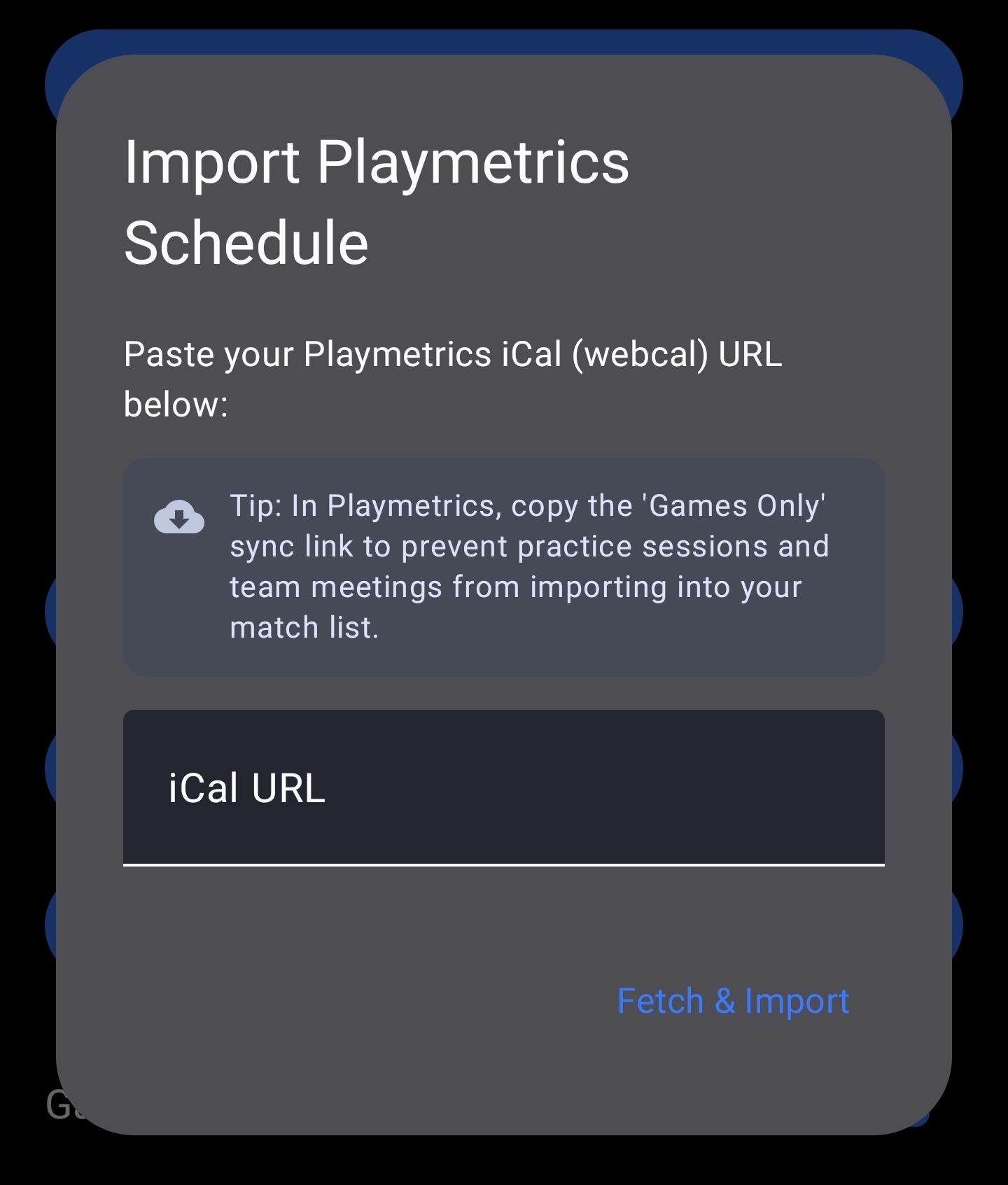
Figure 1: Pasting your PlayMetrics schedule link into 11Kits
Need help with your schedule import? Visit Customer & Beta Support or email us directly at support@11kits.com.