11Kits User Guide: Coach Instructions
As a coach in 11Kits, your device serves as the master time and data authority for your team. Below are the complete operational workflows for setting up your squad, managing pre-match preparations, directing live sideline operations, and reviewing post-match tactical dossiers.
Phase 1: Account Setup & Team Creation
- Account Setup: Sign in with your email address and enter the 6-digit verification code sent to your inbox.
Note: If this is your first time logging in, an account is automatically created for you. Accept the initial terms of service and privacy consent prompt to establish your session.
- Create Team: Enter your team name and generate your team code.
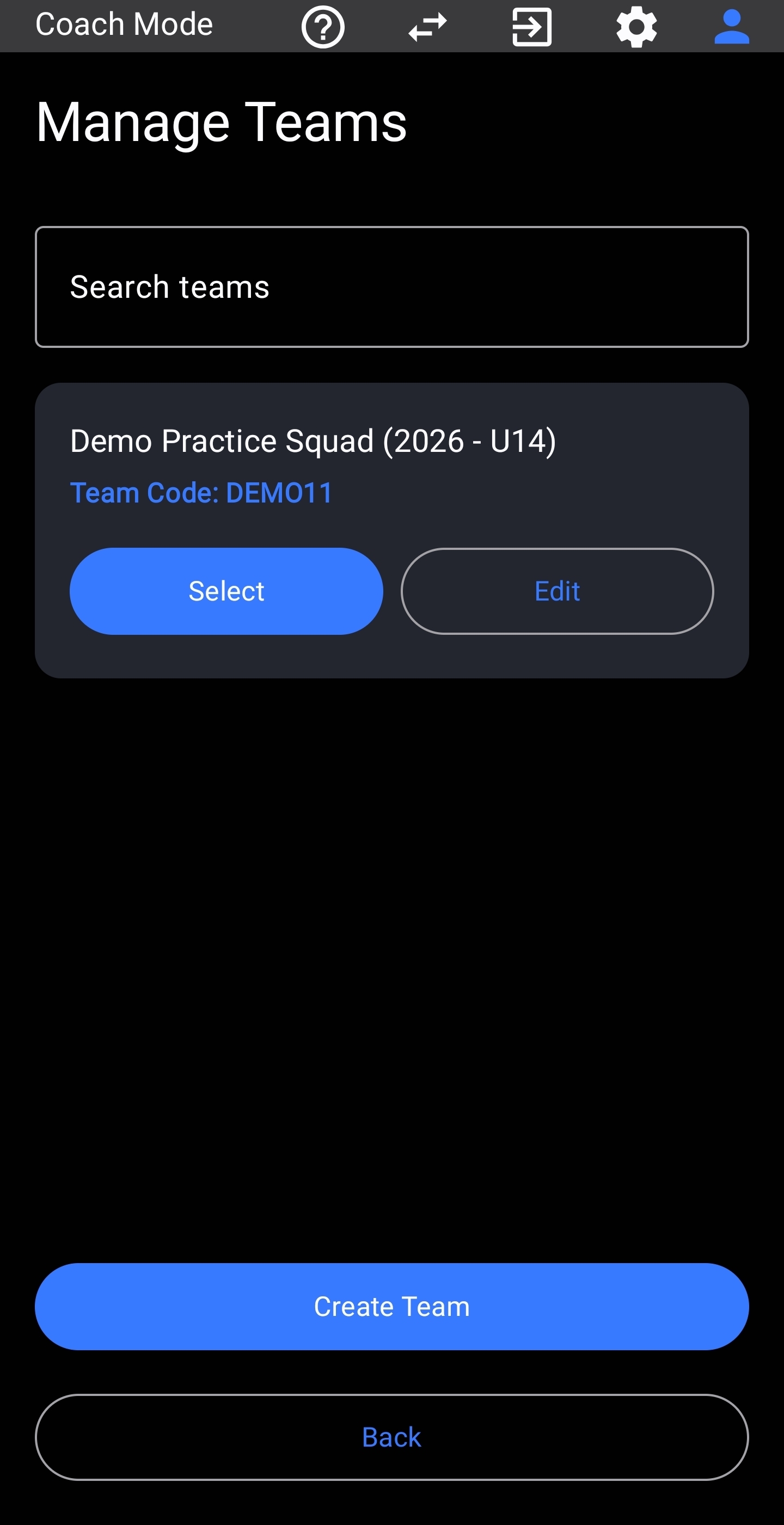 Figure 1: Team Hub & Roster Management
 - Understanding the Two Distinct Codes:
11Kits provides two separate connection methods to keep youth player privacy secure while making matchday sharing effortless:
👥 Team Code: A general 6-character code you share with fans, family, parents/guardians, and supporters so they can follow along with live game scores.🔗 Player Claim Link: A private link sent directly to each player's parent/guardian so they can securely claim and manage their youth player's profile and settings.
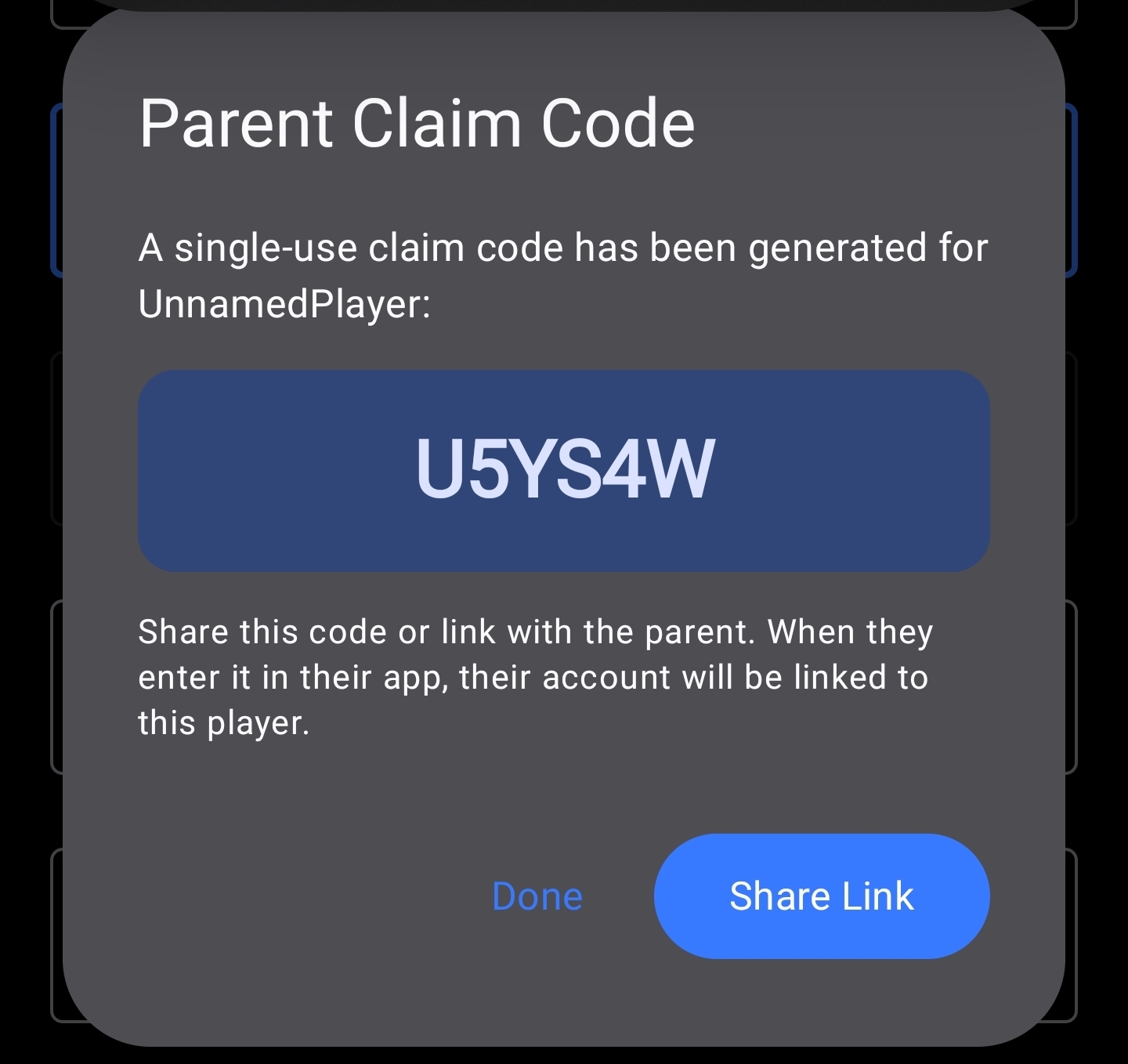 Figure 2: Sharing a Secure Claim Code with a Parent/Guardian
 - Master Roster & Formations: Add your players and set up default lineups across preferred tactical formations (e.g., 4-3-3, 3-4-3) to inherit seamlessly across matches.
Phase 2: Game Scheduling & Match Prep
- Schedule Fixtures: Add games manually or import an entire season via PlayMetrics.
Save time entering matches individually! Import your complete schedule directly into 11Kits with our step-by-step guide: Importing Your Schedule from PlayMetrics.
Pre-Match Checklist
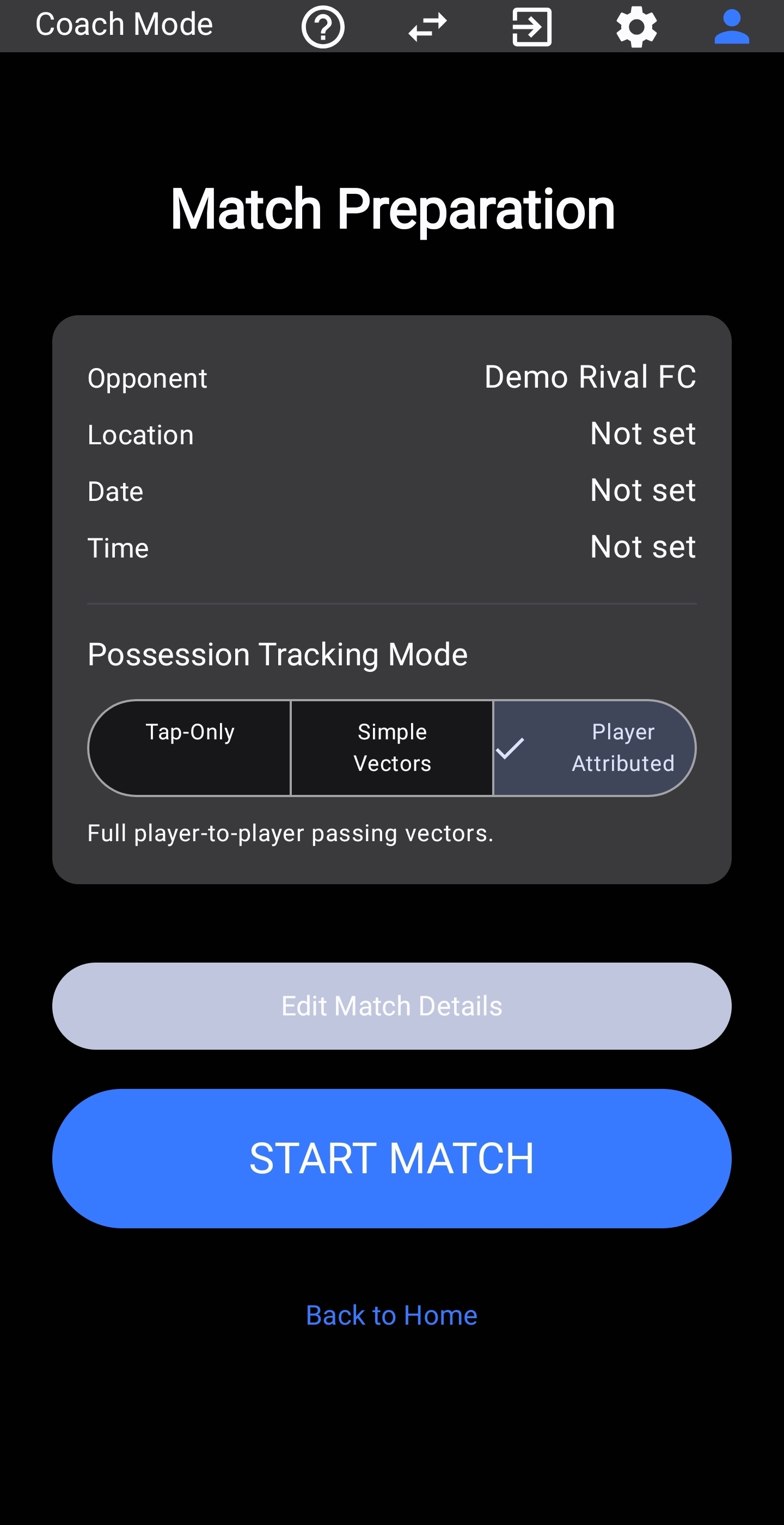
Before heading out to the pitch, open your scheduled game to complete your match preparation checklist:
- Select Tracking Detail: Choose between Tap-Only, Pass Arrows, or Player-Attributed mode. Include a link to our complete guide: Tracking Detail & Staff Roles Guide.
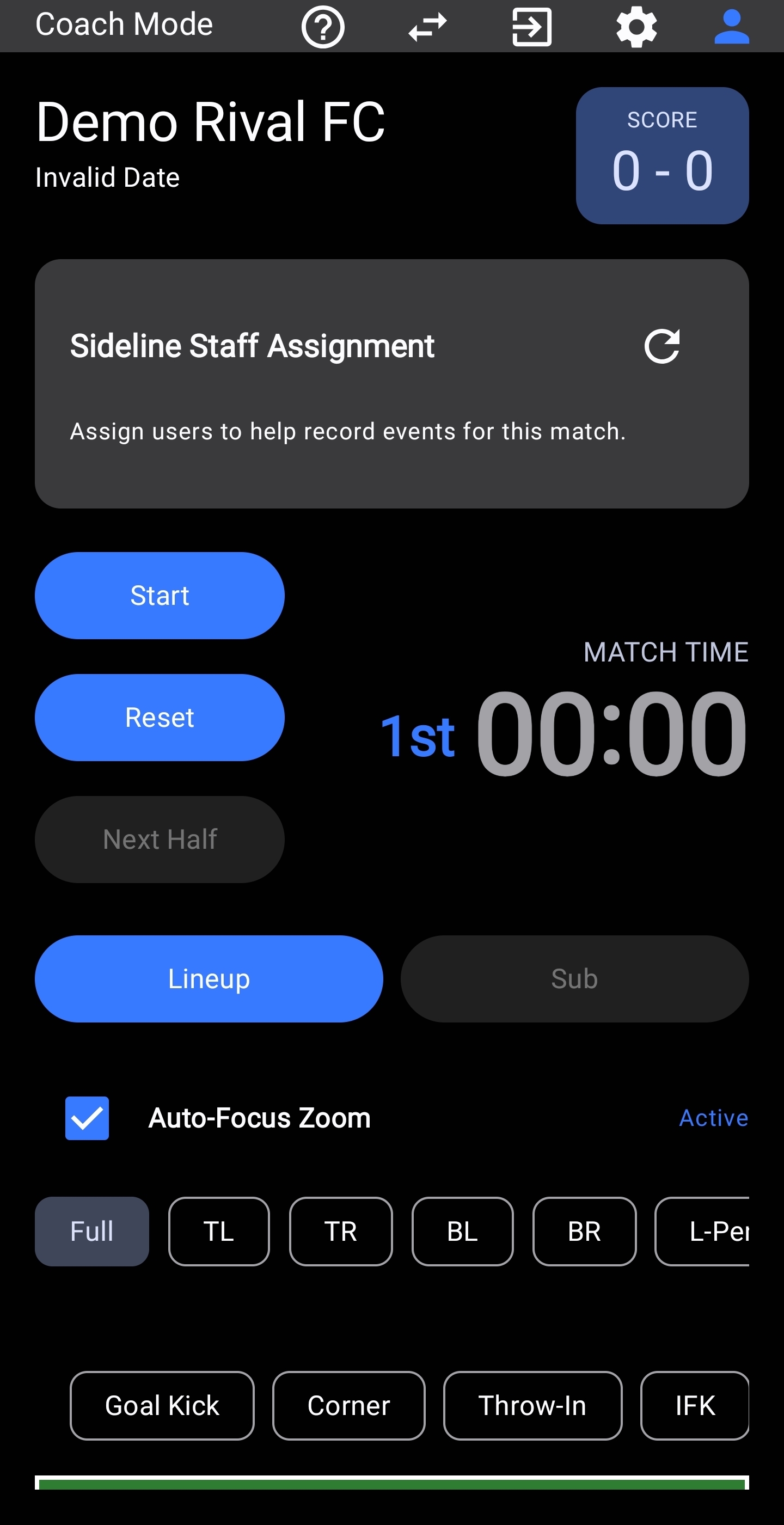
- Assign Sideline Helpers: Check boxes for parent/guardian volunteers present today to delegate duties like running the clock or logging shots.
- Confirm Starting Lineup: Confirm your 11 starters and formation on the pitch canvas before kickoff.
Phase 3: Live Match-Day Operations
When game time arrives, launching your match and managing sideline flow is quick and intuitive.
Starting Kickoff (The 3-Step Sequence)
To ensure all tactical and spatial data is properly mapped from the opening whistle, 11Kits guides you through a clear 3-step kickoff sequence:
- Tap "START MATCH": The app verifies that you have 11 starting players on the pitch canvas. If any spot is empty, you will be prompted to confirm your lineup first.
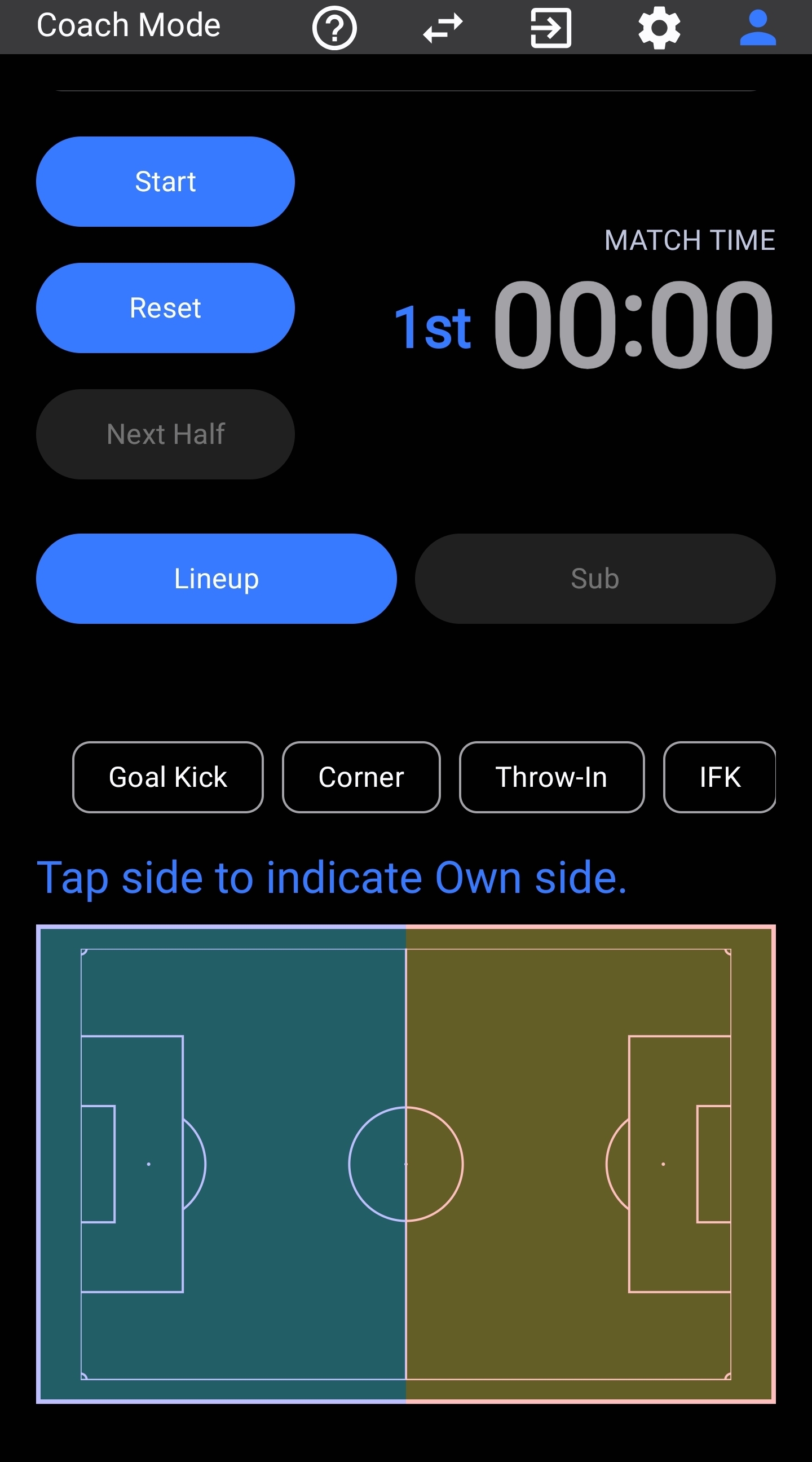
- Choose Defending End: A quick prompt asks which side of the field your team is defending for the first half.
- Start the Clock: Confirm kickoff to start official game time and begin streaming live score updates to connected parents/guardians.
Managing the Sideline
- Match Clock Controls: Start, pause, and resume regulation and stoppage time directly from the sideline interface.
- Player Minutes & Substitutions: Track substitutions on the fly so player minutes stay accurate throughout the match.
- Simultaneous Helper Logging: Assigned parent/guardian helpers can log stats simultaneously from their own devices without duplicate entries.
Phase 4: Post-Match Analytics & Match Reports
After completing your match, take advantage of automated analytics and reporting:
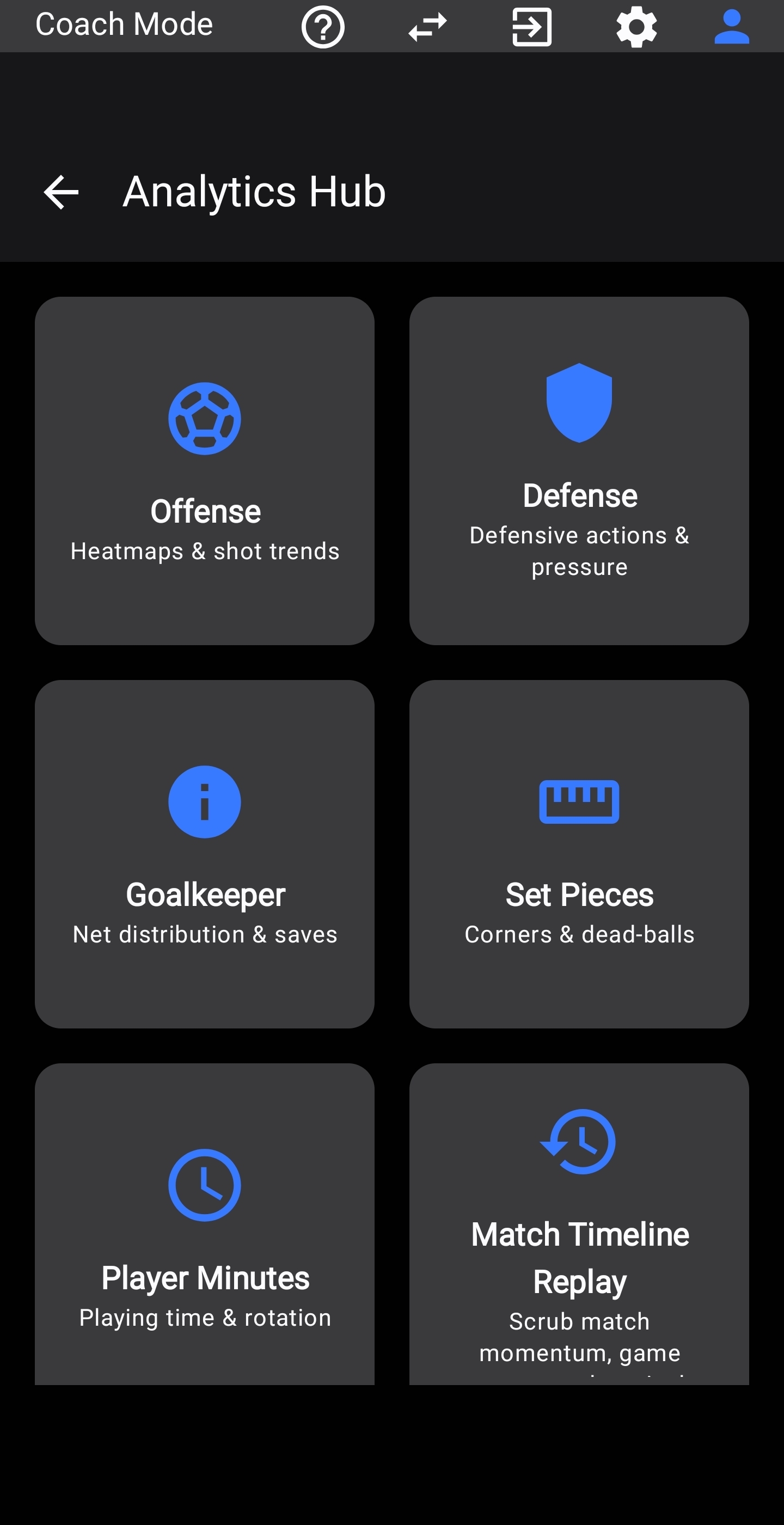
- Tactical Post-Match Review: Open the Analytics Hub to review shot maps, set-piece stats, offensive entries, and player minutes.
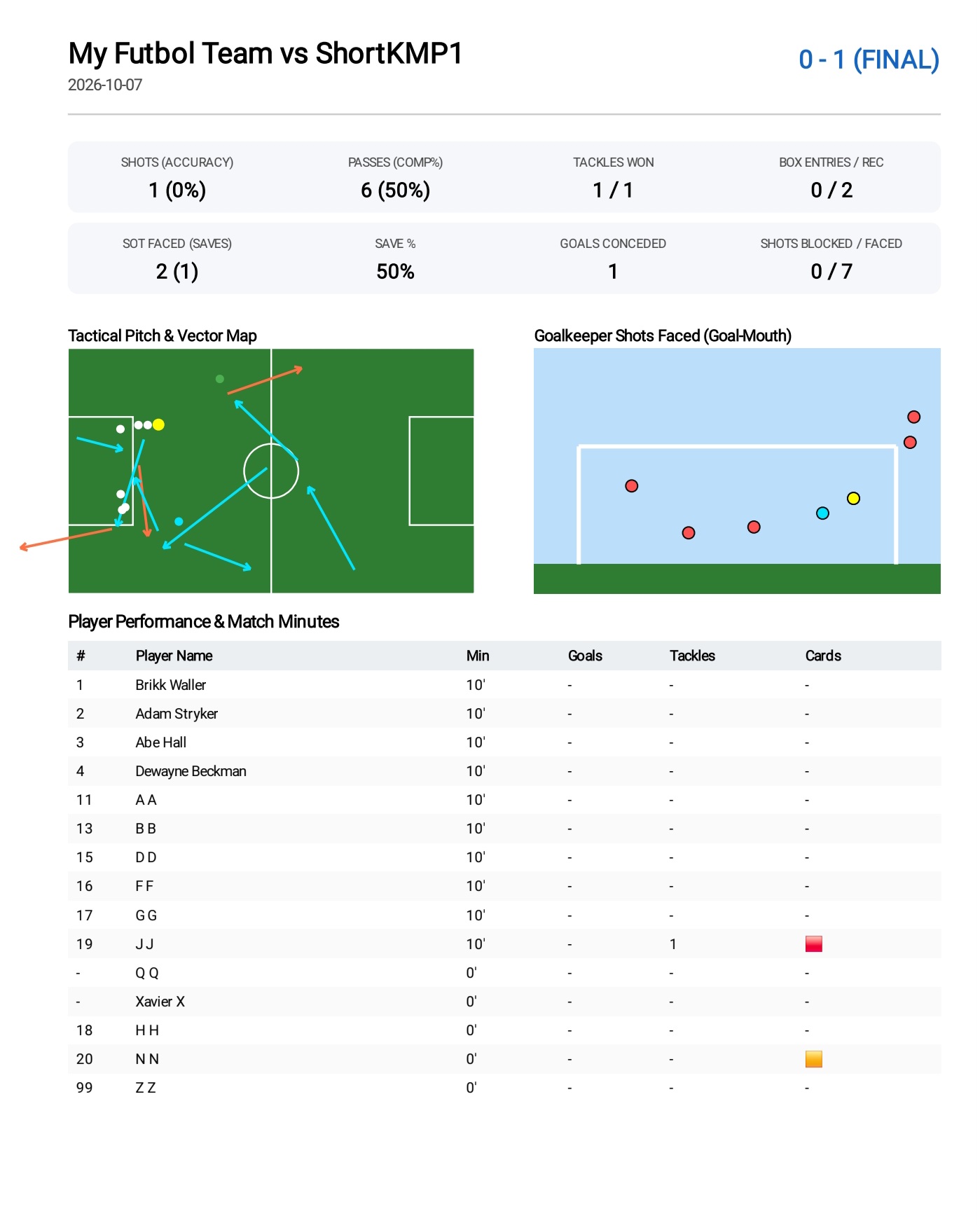
- Single-Page PDF Match Summaries: Generate a 1-page printable match summary to review performance trends or share post-game dossiers.